
Saying it
Tap 🎤 at the bottom right of My day or Tasks — or hold the Lanibo icon on the home screen → Say it. Then say, for example:
- "Leo to take out the bins tomorrow at 7" → a task for Leo, tomorrow, 07:00.
- "Buy milk, bread and eggs" → three things on the shopping list.
- "Football practice on Thursday from 6 to 7" → an event.
Tap Done when you've finished speaking.
Check and save
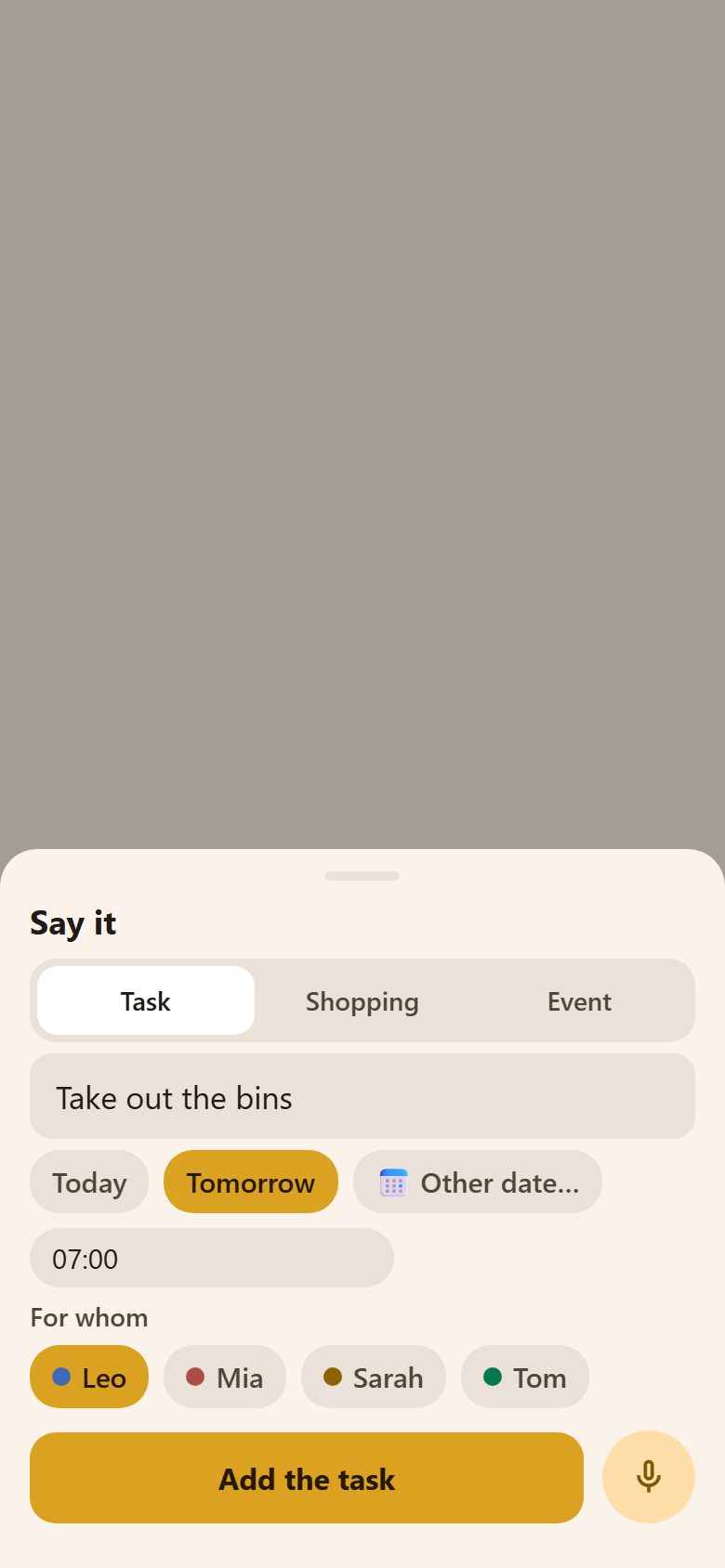
Lanibo shows what it understood: Task, Shopping or Event at the top, the title, the day and time, and for whom. Change anything, then Add the task (or Add to the list, Add the event). 🎤 there says it again.
Type instead takes the same sentence typed — handy in a quiet room, or where the phone can't listen.
With the AI assistant
For parents with the AI assistant on, it understands more:
- several things in one sentence — "Buy milk, and Mia has swimming on Friday at 5" — shown one after the other ("Then: 1 more");
- from a photo: Snap a note, From photos or Scan — a school letter or an invitation becomes tasks and events. Each uses requests from the family's allowance.
Without the assistant everything is understood on the phone itself.
Languages
You speak in the app's language (your Profile). The phone does the listening — Google on Android, Apple on an iPhone, the browser on a computer.
Questions
It put the task on the wrong person. Say the name first ("Mia, …"), or tap the right person under For whom before saving.
Can children use it? Yes — a child's task goes to themselves unless they say another name.