The App tab
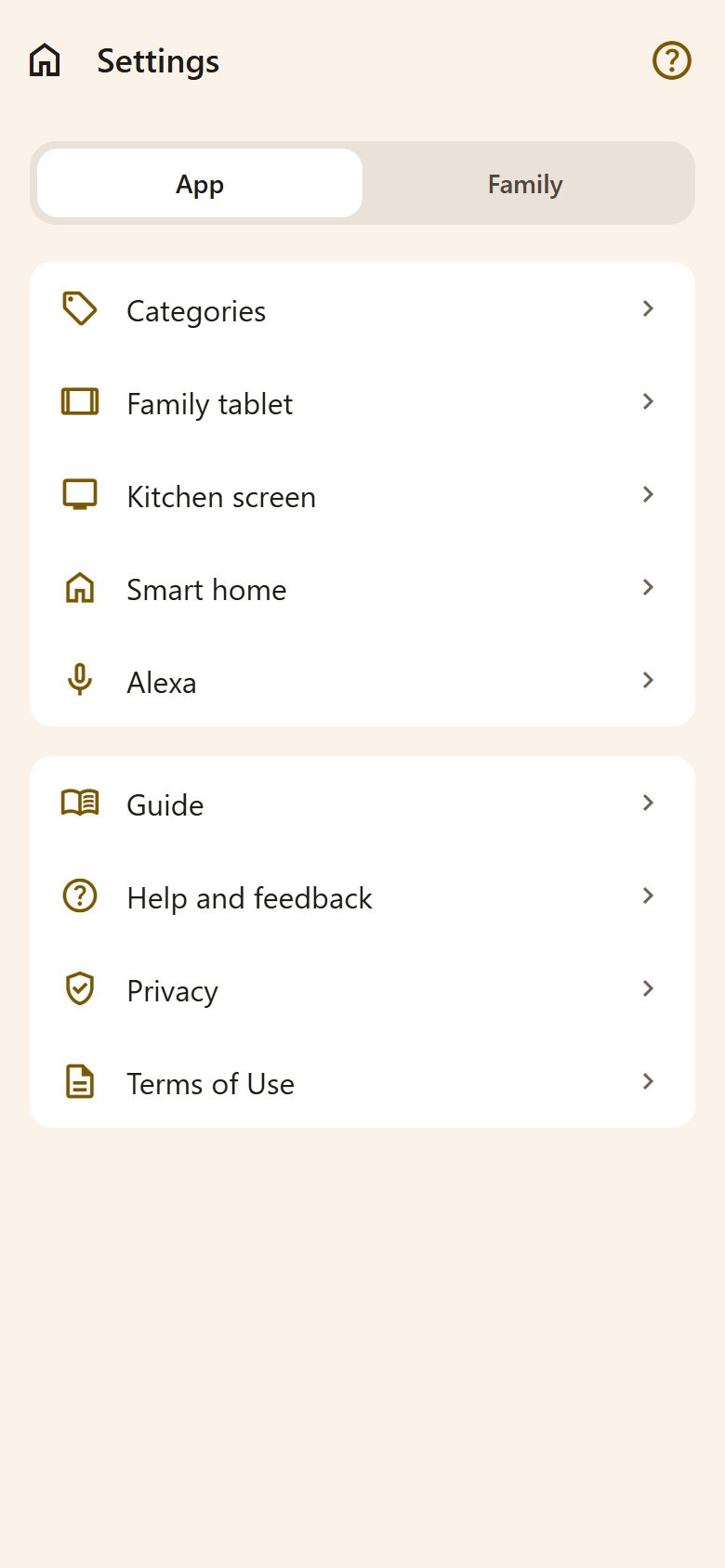
| Row | What's there |
|---|---|
| ✨ AI assistant | Only when the AI is on for the family (see Family → AI assistant). See AI assistant. |
| Categories | The categories for tasks and for notes: add, rename, recolour, delete. Deleting one keeps its tasks and notes, just without a category. See Categories. |
| 📱 Family tablet | One shared tablet for the children, each with a PIN. See Family tablet. |
| 🖼️ Kitchen screen | The family's day on an old tablet — today's events, what's next and dinner. |
| 🏠 Smart home | Lanibo in Home Assistant and similar. See Smart home. |
| 🔊 Alexa | Add to the shopping list and tasks by voice. See Alexa. |
| Recommend Lanibo | Sends another family a link to sign up (by message, e-mail or any app). |
| Guide | The short guide inside the app. |
| Help and feedback | Common questions and "Write to us". |
| Privacy, Terms of Use | What we keep and why; the rules. |
The Family tab
What you set here applies to the whole family. Only parents can change it — children see "Only parents can change these settings."
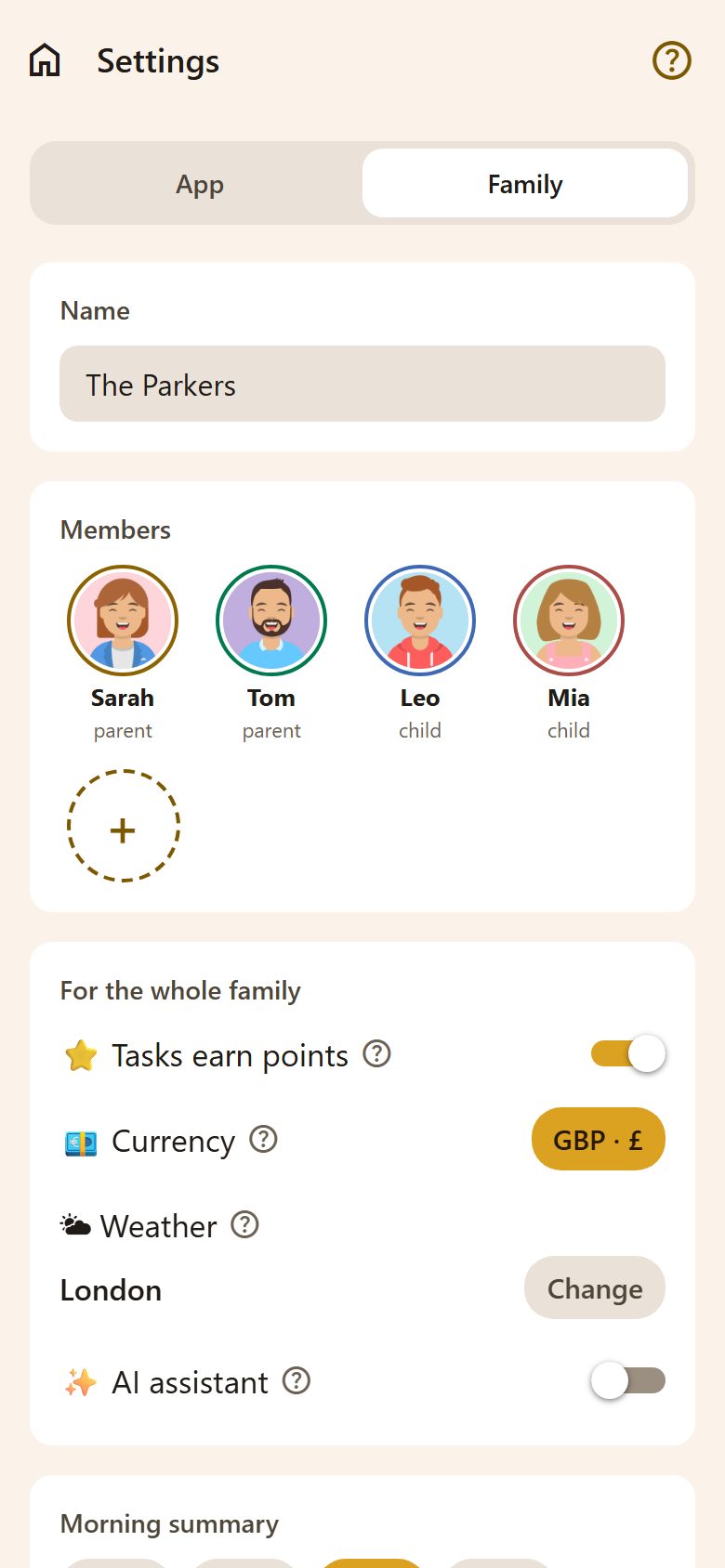
Name
The family's name, as it shows in invitations and shared links ("The Parkers").
For the whole family
One card with four settings; the ? next to each says what it does.
- ⭐ Tasks earn points — on by default. When off, finished tasks earn no points and the Points tab is hidden. Points already earned are kept and come back if you turn it on again.
- 💶 Currency — the money sign for pocket money, savings goals and bills. Lanibo takes it from the phone's region the first time; tap it to choose another.
- 🌤 Weather — the town for the forecast in the morning summary and My day, with what to wear. Change opens a panel: write the town, tap Find and pick it. It appears within a few minutes. No weather there removes it, after asking (it goes for the whole family).
- ✨ AI assistant — off by default. It understands sentences like "Add a task for Wednesday at 5 pm to call Peter", reads a photo of a school note and helps with the first steps. It always shows a suggestion; nothing is saved until you confirm. Its ? has "What is sent, and to whom →", which explains exactly what goes to the AI service.
Morning summary
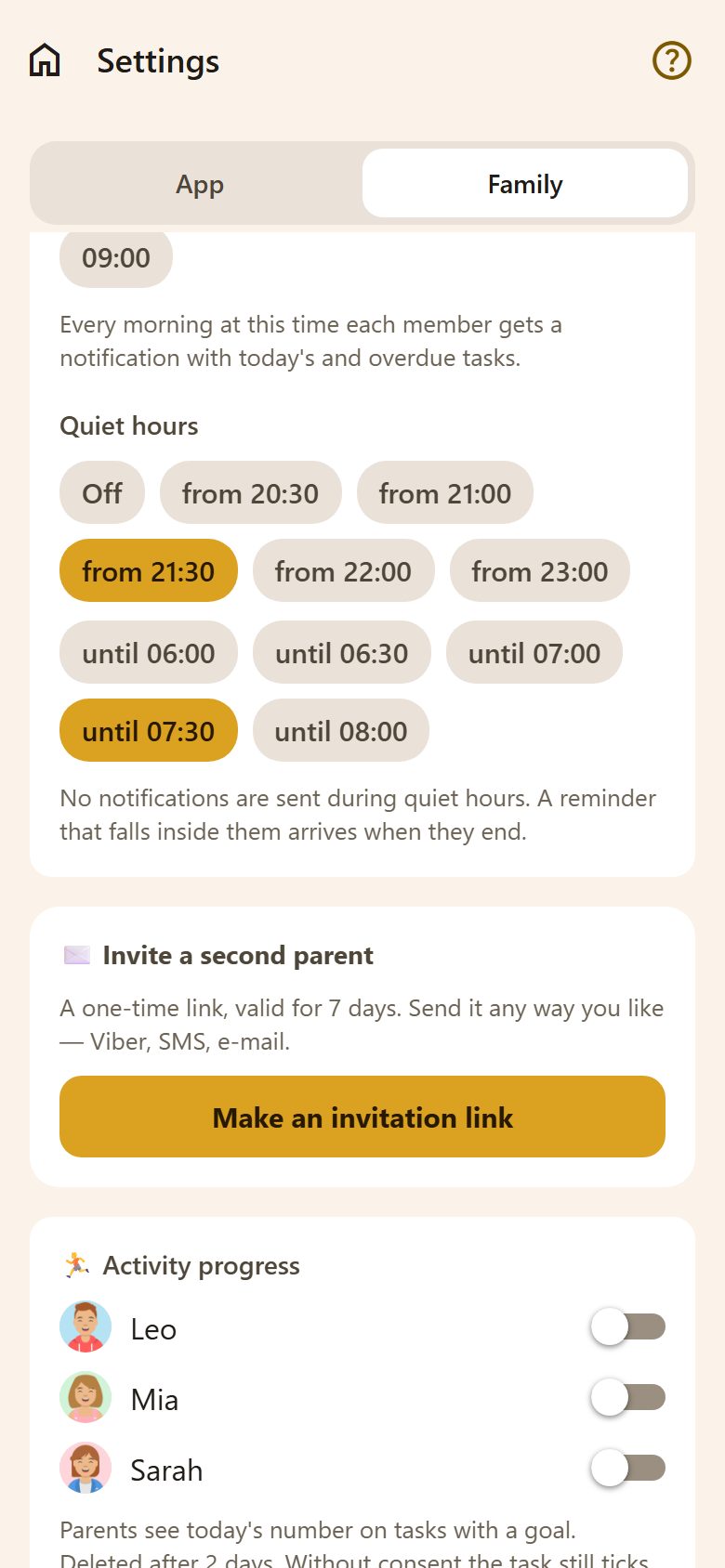
Every morning at the chosen time — 06:30, 07:00, 07:30, 08:00 or 09:00 — each member gets a notification with today's and overdue tasks (and the weather, if a town is set).
Quiet hours
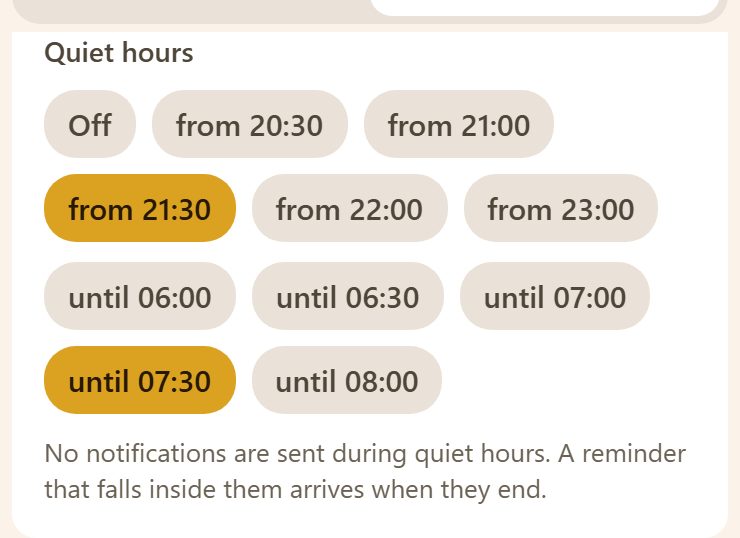
From (20:30 – 23:00) until (06:00 – 08:00), or Off. No notifications are sent during quiet hours; a reminder that falls inside them arrives when they end.
Invite a second parent
Make an invitation link — a one-time link, valid for 7 days. Send it any way you like (Viber, SMS, e-mail); the other parent opens it, makes an account and is in the family.
Members
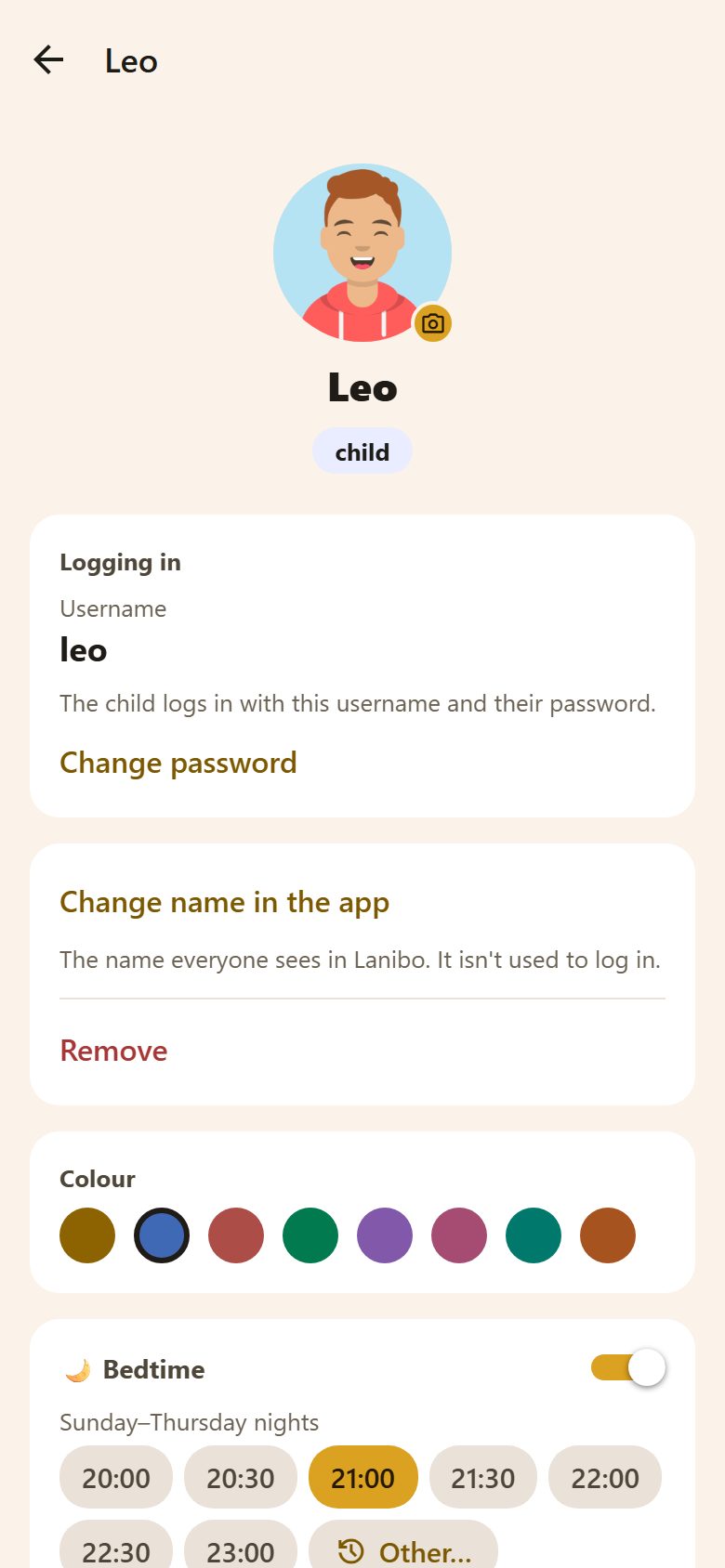
The members are a row of faces under the family's name. Tap someone to open them — how they log in (your own e-mail, a child's username), password, colour, name, consent and a child's bedtime; another parent shows only their colour and Remove. The + at the end of the row adds a child or a parent. On your own screen, Change e-mail changes the e-mail you log in with: enter the new one and your password, then open the link we send.
- 📷 on the picture — change the photo (parents for everyone, children for themselves).
- Colour — the person's colour on tasks, the calendar and the shopping list.
- Change name, Change password (children's), Remove.
- I confirm my consent as a parent — for each child, a parent confirms consent to the privacy terms. Until then the child's card says "No parental consent is recorded".
- + Add a child — a name, a username, a password and your consent; no e-mail needed. The child logs in with the username.
- + Add a parent — a name, an e-mail and a password. Or send the invitation link and let them make their own.
Bedtime
On a child's page (tap their face), a switch. When it's on, pick two times: Sunday–Thursday nights and Friday and Saturday nights. 15 minutes before, the child gets a reminder, and My day turns dark and calm — "Good night!" — until morning. The child can still open the day if they need to.
Activity progress
Whether parents see today's number (steps, minutes…) on tasks with an activity goal. Deleted after 2 days. Without consent the task still ticks itself on the child's phone. See Activities.
Download the family's data
Everything your family has in Lanibo, as one file. See Privacy.
Questions
Why can't my child see ⚙️? Settings change things for everyone, so they are for parents. A child's own settings are in their Profile.
Two parents changed the same setting — whose wins? The last one saved. Everyone sees the change within seconds.