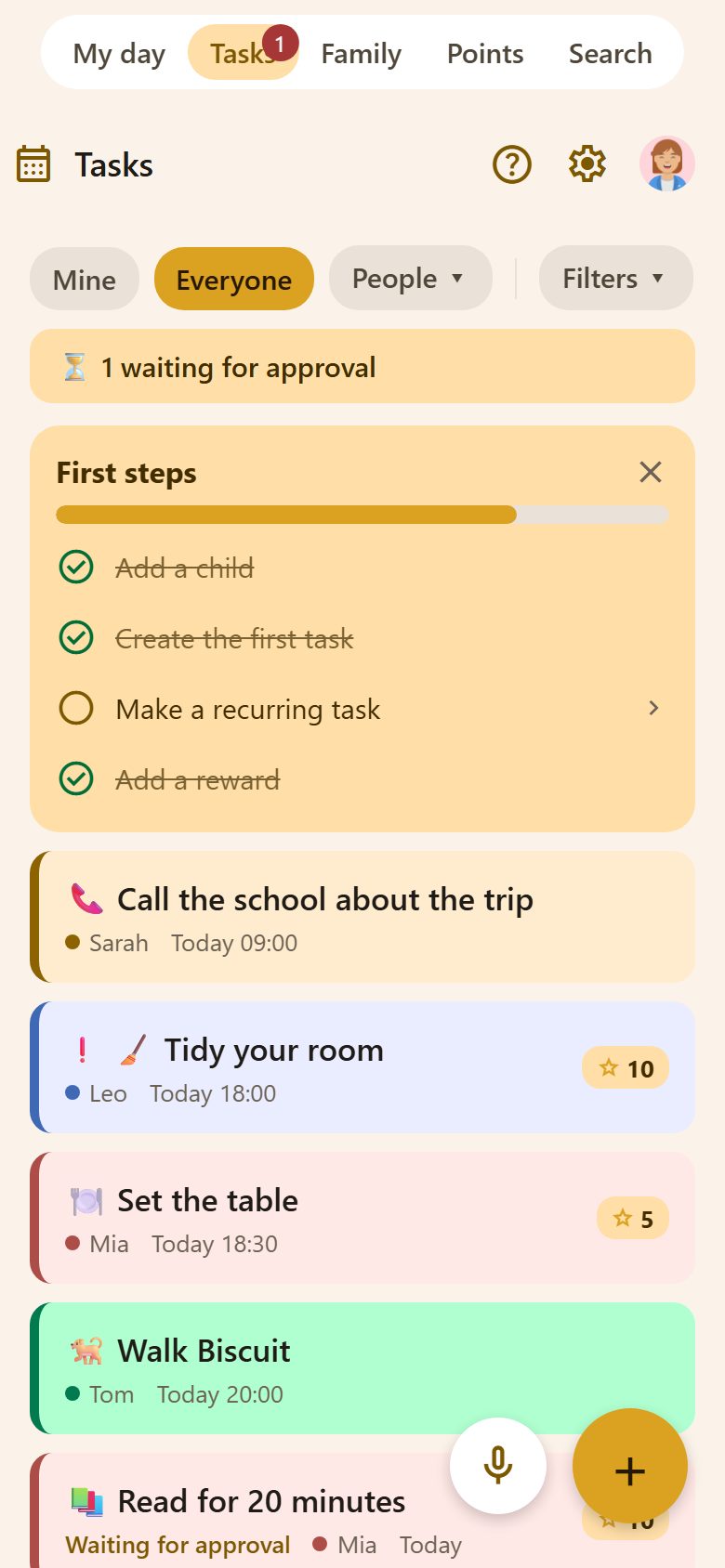
The Tasks tab
At the top you choose whose tasks you see:
- Mine — only yours.
- Everyone — the whole family's, each person in their own colour.
- People — pick one or more people.
- Filters — statuses, categories and "Only from routines" (see Filters).
Under them, "⏳ … waiting for approval" shows how many tasks the children have marked done; tap it to see them. The red number on the Tasks tab is the same count.
A new task
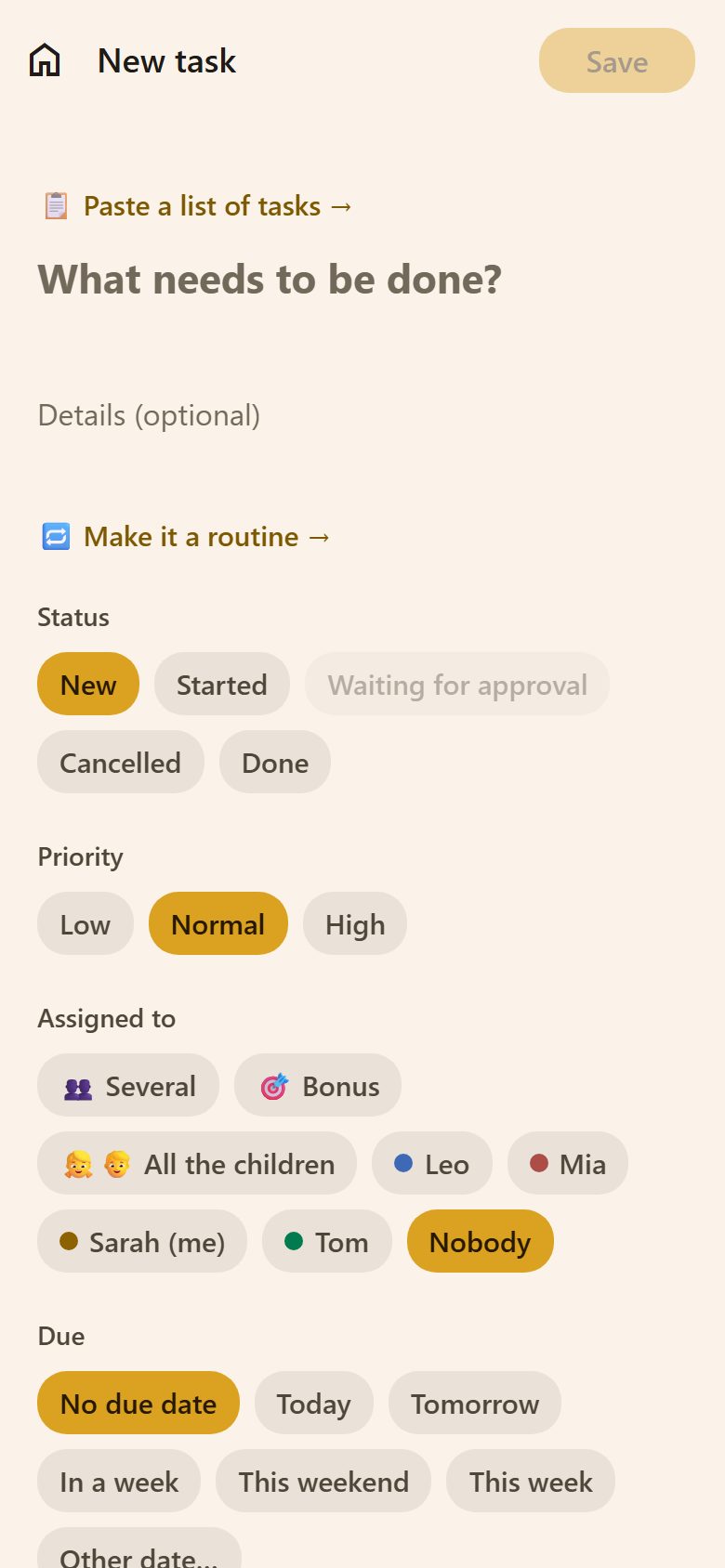
Tap "+" at the bottom right (on Tasks or My day). Only the title is required; everything else is optional — fill in what helps, skip the rest. The form scrolls: who it's for, when, points, category and a picture come below.
| Field | What it does |
|---|---|
| What needs to be done? | The title — the only thing you must fill in. |
| Details | A longer description. On a phone it is formatted like a note: bold, lists, checkboxes. |
| Status | New, Started, Cancelled or Done. "Waiting for approval" is set by the child's "Done!", not here. |
| Priority | Low, Normal or High. |
| Assigned to | One person, Nobody, All the children (each gets their own copy), Several (pick people — each gets their own copy) or Bonus (see below). |
| Due | No due date, Today, Tomorrow, In a week, This weekend, This week (any day until Sunday) or Other date… |
| Must do today | Puts the task at the top of My day; if it isn't done by 18:00, there's a reminder. |
| Time | With a day picked: Pick a time. Then you can add a Reminder (at the time, 15 min before, 1 hour before or the day before) and a ⏰ Alarm. |
| Points | 0, 5, 10, 20, 50 or any other number. 0 means "🤝 For the family" — some things we just do because we're a family. |
| Category | Tap a category to pick it, tap it again to remove it. + Add category makes a new one right here. |
| Picture | An icon that the children recognise at a glance — see below. |
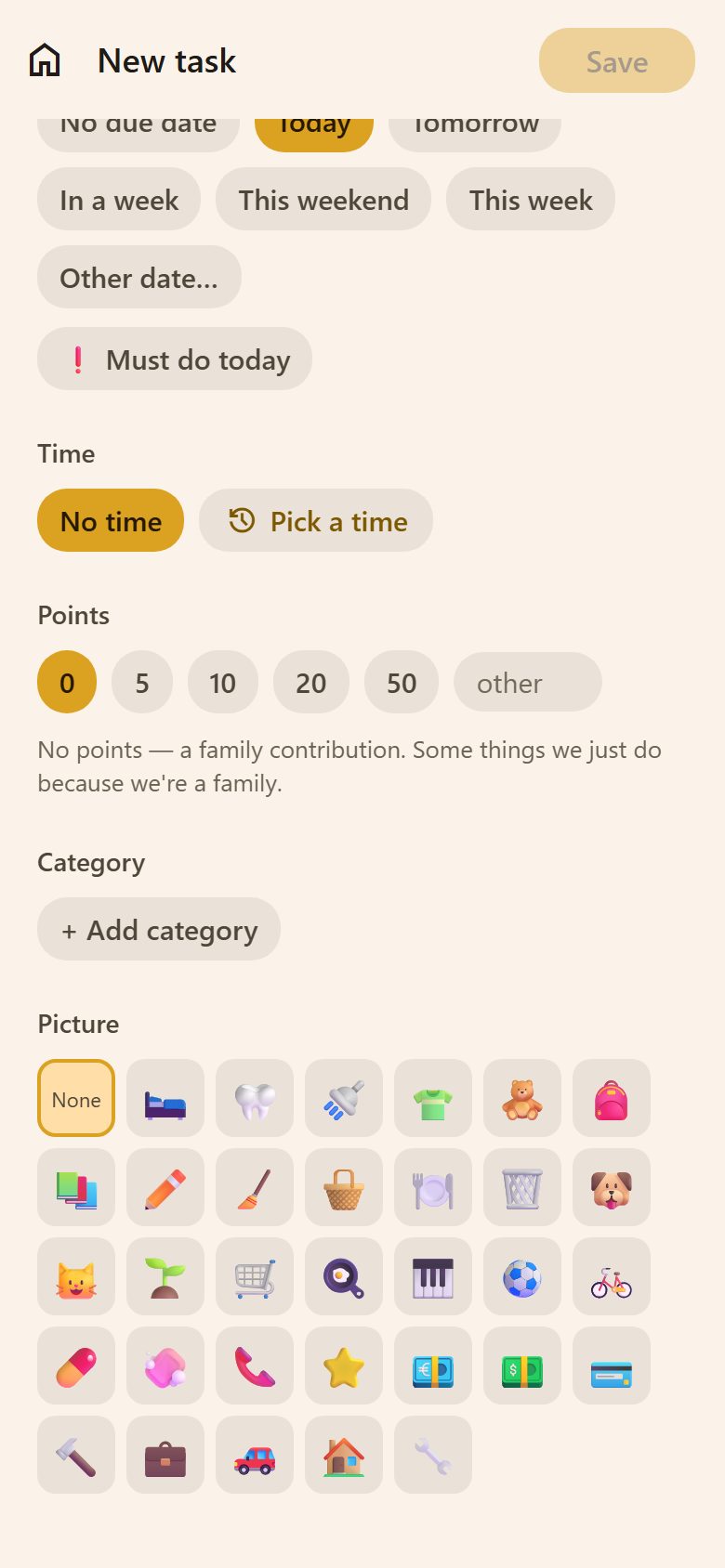
Tap Save at the top right. The task appears at once on every phone in the family, and the person it's for gets a notification.
The picture
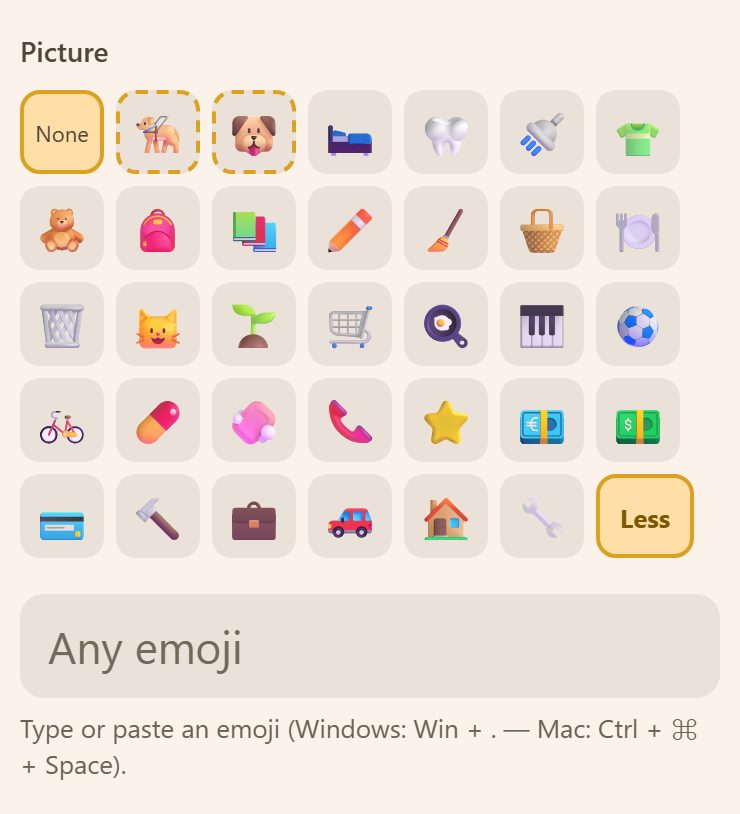
- Pictures that fit the title come first, with a dashed border — write "Walk the dog" and 🦮 🐶 are there. It works in every language of the app.
- Then the ones you picked lately, then the usual ones.
- More shows all the usual pictures and an Any emoji field: on a phone, tap the 😀 key on the keyboard — every emoji is there, with a search. On a computer, Win + . (Windows) or Ctrl + ⌘ + Space (Mac).
The same picker is everywhere a picture is chosen: routines, rewards, events, recipes, bills and the rest.
Assigned to: "Bonus"
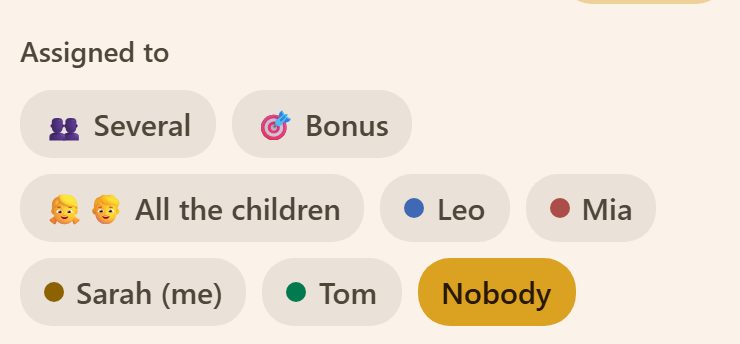
A bonus task belongs to nobody at first. The children see it on My day with an "I'll take it!" button — the first to tap gets the task and its points. Good for extra jobs: "Wash the car — 30 ⭐".
Faster ways to add
- Paste a list of tasks (at the top of the form): each line becomes a task, and names, days and times are understood — "Ben — his room tomorrow at 6".
- 🎤 Voice: the microphone next to "+" — say "Leo to take out the bins tomorrow at 7". See Adding by voice.
- Save as template: a saved task comes first next time, with its picture, points and steps.
- Make it a routine: turns the task into a recurring one ("every Tuesday"). See Recurring tasks.
Done and approved
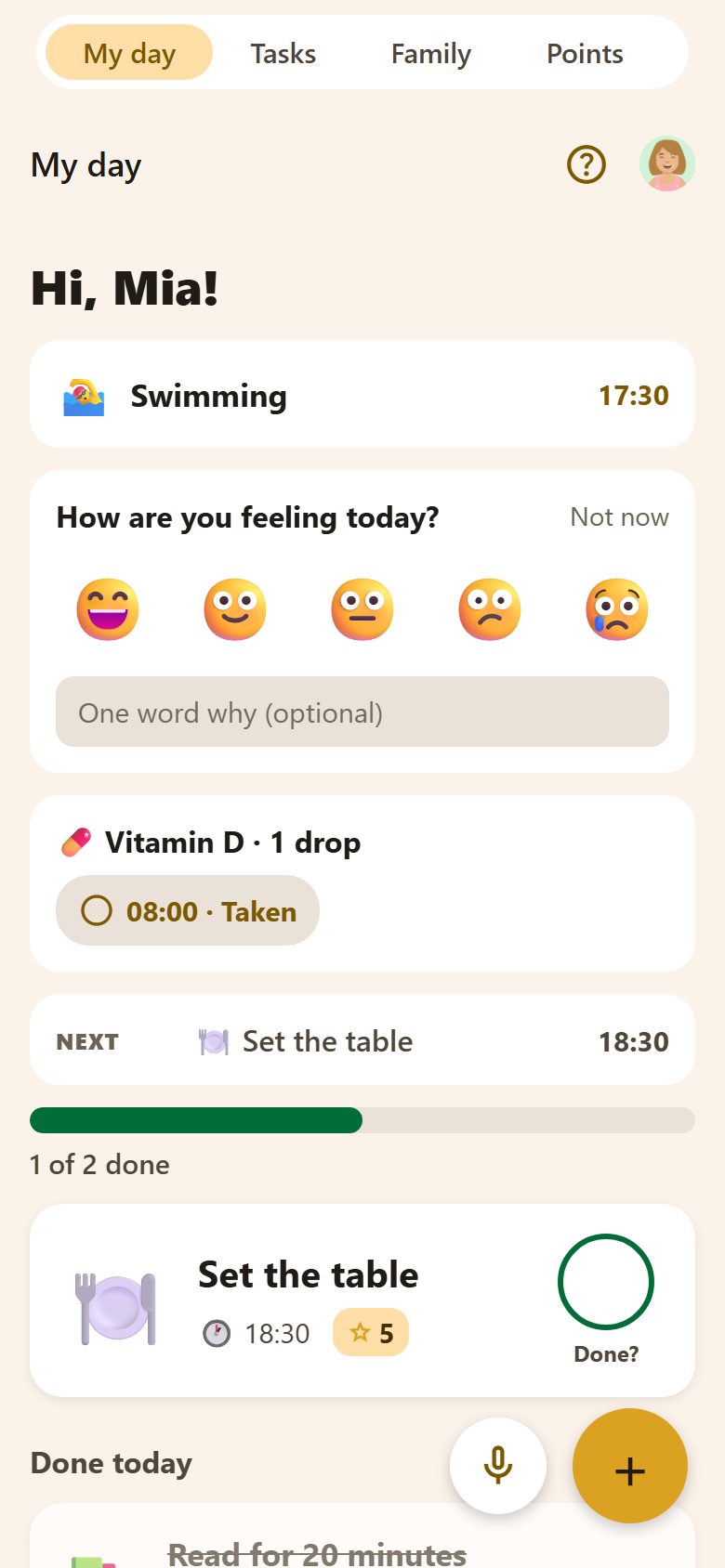
A task goes through these steps:
- New — the child sees it on My day and in Tasks.
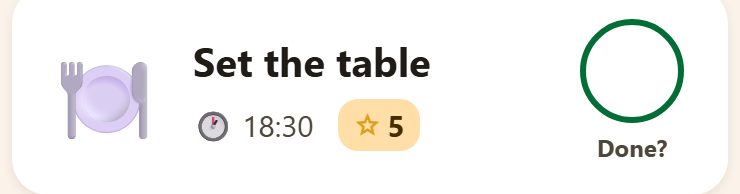
- The child taps Done! — the task becomes Waiting for approval and the parents are told.
- A parent opens it (or swipes it right) and taps Approve — the points come in. Or Send back, with a reason the child sees.
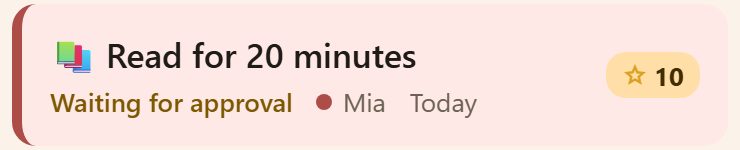
Parents' own tasks don't need approval: ticking them marks them done.
Swipes and holds
- Swipe right — tick the task (for a parent: approve it).
- Swipe left — more actions.
- Hold a task — Copy (a new task like it; a past day becomes today), Later or Delete. Delete is for parents; a child can delete a task they made themselves, until it is done (its planning star goes back).
- A child can postpone a task to tomorrow or next week; the parent who gave it is told.
The 🕐 at the top of an open task shows its history: who made it, changed the day or the person, said "Done", approved or sent it back.
Filters
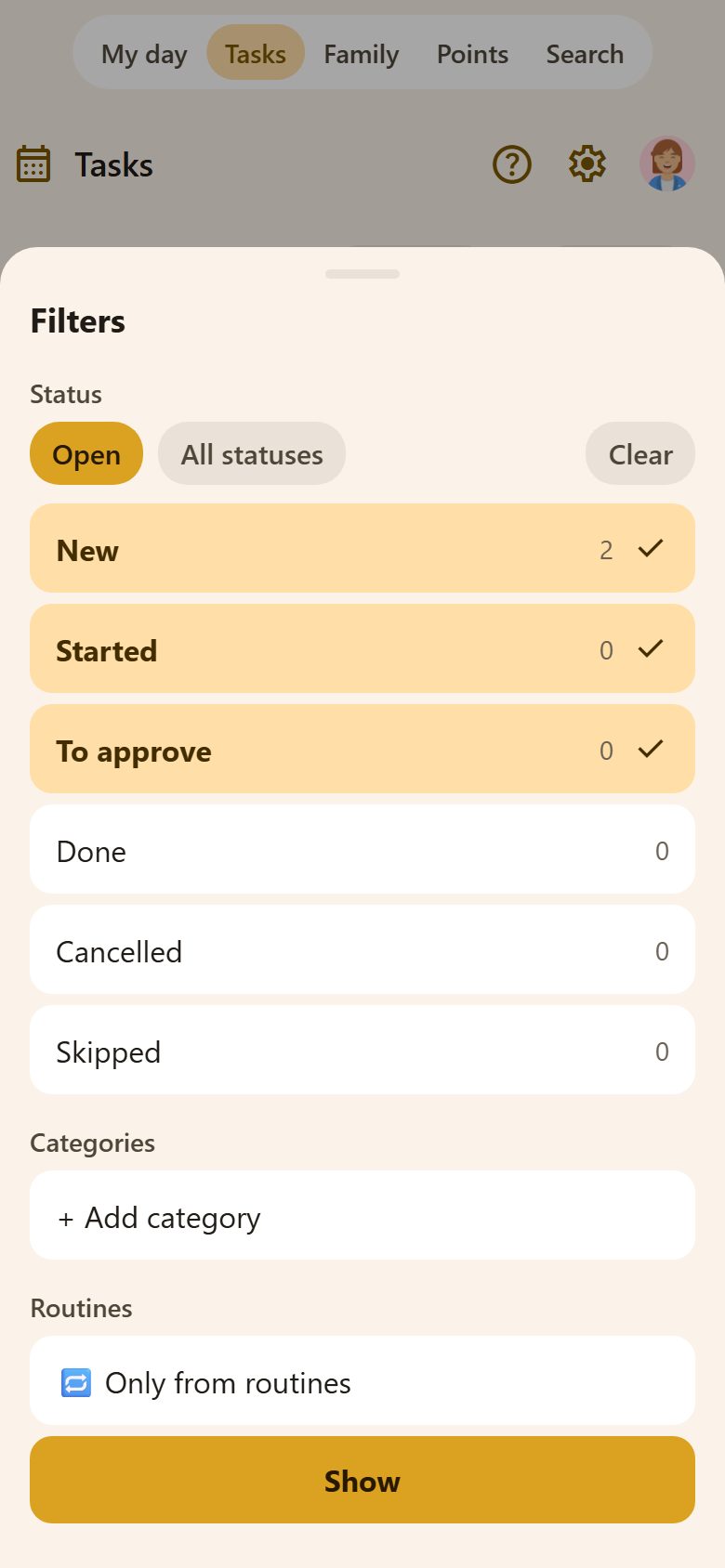
Filters opens one sheet with everything you can narrow the list by:
- Status — Open (New, Started, To approve) or All statuses; tick the ones you want. The numbers are how many tasks have each status.
- Categories — your task categories, or + Add category.
- Routines — Only from routines shows just the tasks made by routines.
Clear goes back to the default; Show applies the filters.
Other views
- Calendar — tasks by day.
- Week by person — who has what on each day of the week.
- Reactions — under a done task, react ❤️ 👏 🎉: praise without points.
- 📎 Files — a photo or a PDF on a task (and on a note, a bill, a car, a pet, a document, a medicine, a recipe or an "Important" item), opened with a tap.
Questions
Can a child create tasks? Yes — for themselves, without points. Only parents give tasks to others, set points and approve.
What happens to points when I turn them off? ⚙️ Settings → Family → "Tasks earn points" off: finished tasks earn nothing and the Points tab is hidden. Points already earned are kept.
Does each child get their own copy with "All the children"? Yes. Each one ticks their own, and each gets the points.