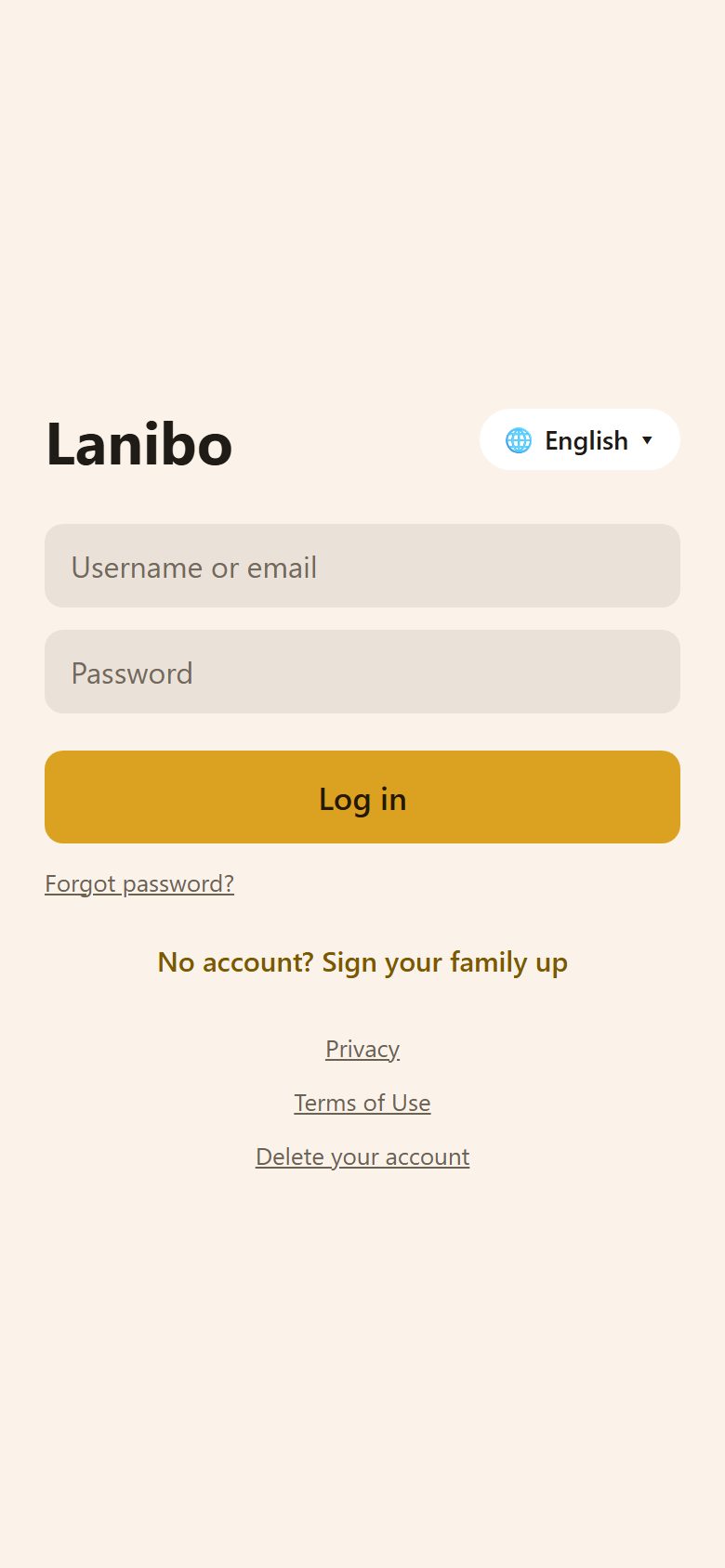
1. Sign your family up
On the first screen, tap No account? Sign your family up and fill in:
| Field | What to write |
|---|---|
| Family's name | How the family shows in invitations and links — "The Parkers". |
| Your name | What the others call you in the app — "Sarah", "Mum". |
| You log in with it, and it gets the confirmation link and a new password if you forget yours. | |
| Password | At least 8 characters. |
| Sign-up code | Only if you got one from us. Leave it empty otherwise. |
Tick I'm 18 or older and I agree to the Terms of Use and the Privacy Policy, then Create the family.
Without a code there is a short check that you're not a robot, and we send you an e-mail with a link. Open it to confirm the address, then log in. Nothing there? Look in Spam.
2. The setup guide
Right after the first login, three short steps — each can be skipped and changed later:
- Who are the children? Add them now (see below), or invite the other parent.
- Points and rewards? Children earn points for tasks and spend them on rewards. Switch it off if you don't want it.
- Ready-made tasks: tick the ones to start with — "Make the bed", "Take out the bins", "Homework"… They become templates: next time you make a task, they're one tap away.
3. Add the children
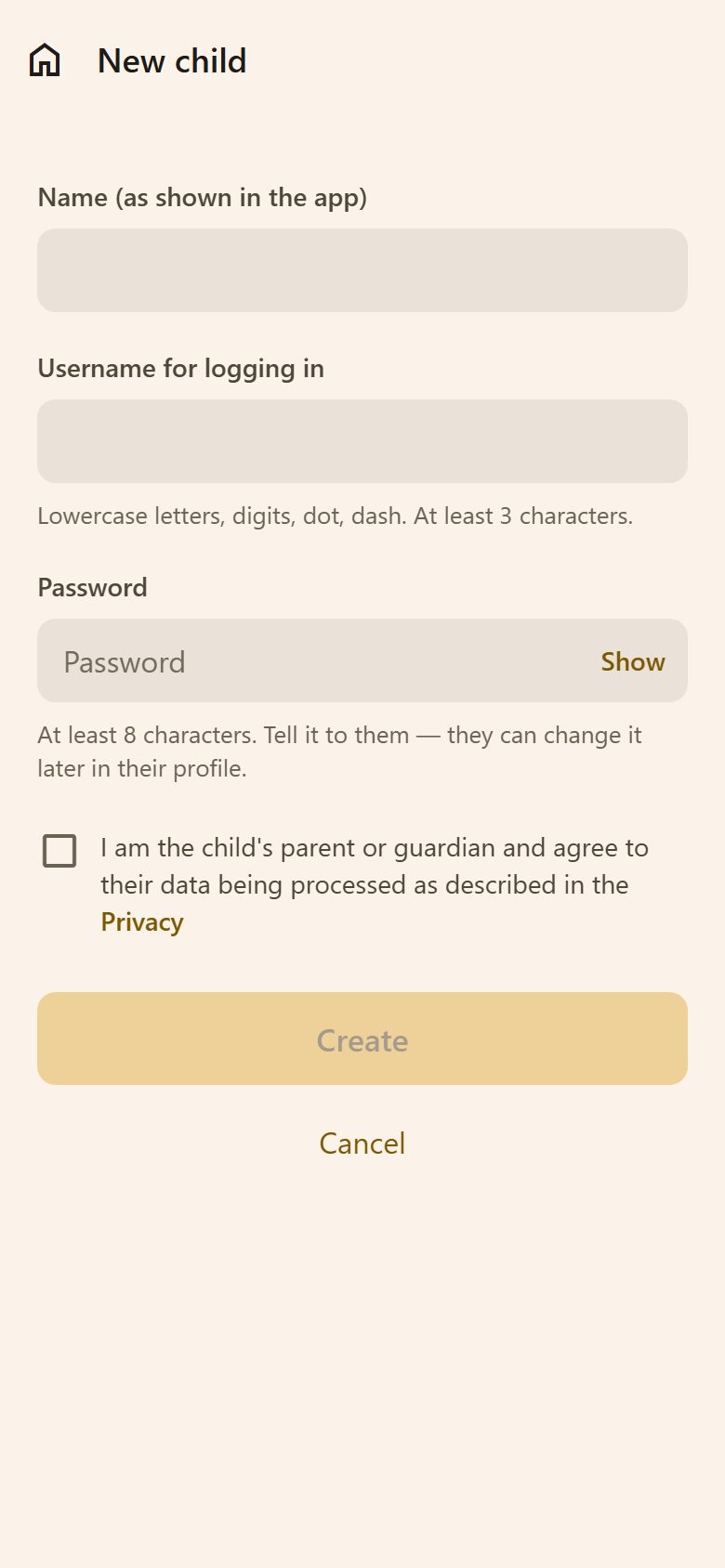
A child doesn't need an e-mail or a phone number. In ⚙️ Settings → Family → + Add a child:
- Name — as it shows in the app ("Leo").
- Username for logging in — lowercase letters, digits, dot and dash, at least 3 characters ("leo", "mia.p").
- Password — at least 8 characters. Tell it to the child; they can change it later in their profile.
- Tick that you are the child's parent or guardian and agree to their data being processed as described in the Privacy Policy.
The child installs Lanibo on their own phone or tablet and logs in with the username and password. No phone? A shared family tablet works too.
4. Add the other parent
Two ways, both in ⚙️ Settings → Family:
- Make an invitation link (recommended): a one-time link, valid for 7 days. Send it by Viber, SMS or e-mail; they open it, make their own login and are in the family.
- + Add a parent: you set their name, e-mail and password yourself.
Parents see and can change everything; children see their own day, the family's shared places, and ask for rewards.
5. First steps
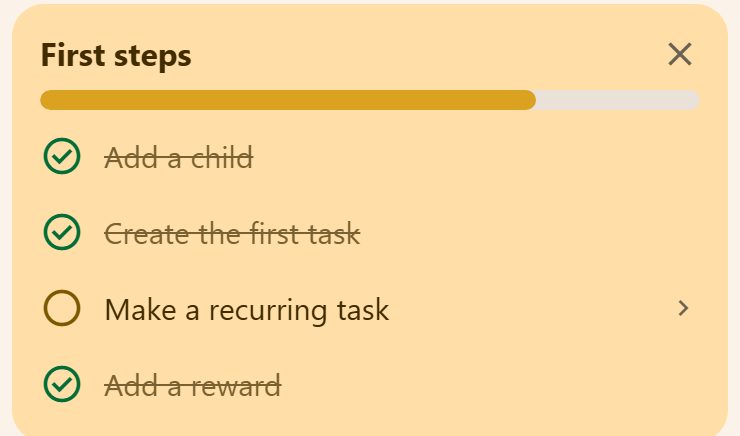
On the Tasks tab, First steps shows what's left: add a child, the first task, a recurring task, a reward. Tap a line to do it; close the card with ✕ when you're done.
Questions
Can two families use one account? No — each family has its own. A person belongs to one family.
I didn't get the e-mail. Look in Spam and Promotions. Still nothing? Write to support@lanibo.com from the same address.
Can a child sign the family up? No. Sign-up is for adults (18+); children are added by a parent.